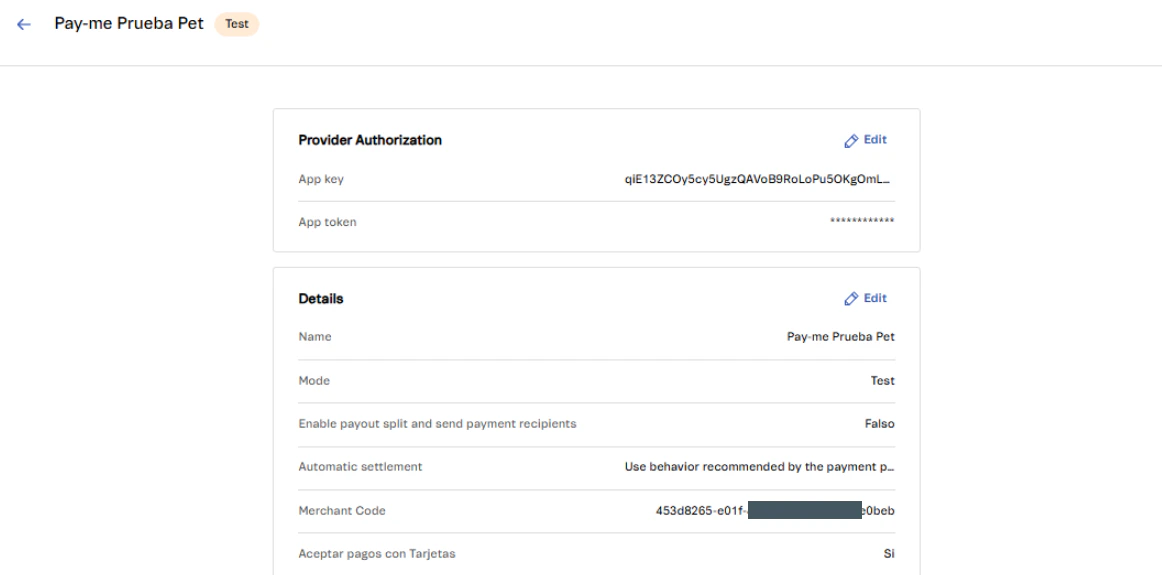
Alignet One provides the App Key, App Token and Merchant Code credentials. Each has a specific purpose.
Credentials fields
Open complete board1) Provider Authorisation
Enter the credentials shared by the Alignet One:- Key App → Public key of the merchant.
- App token → Token’s secret authentication.
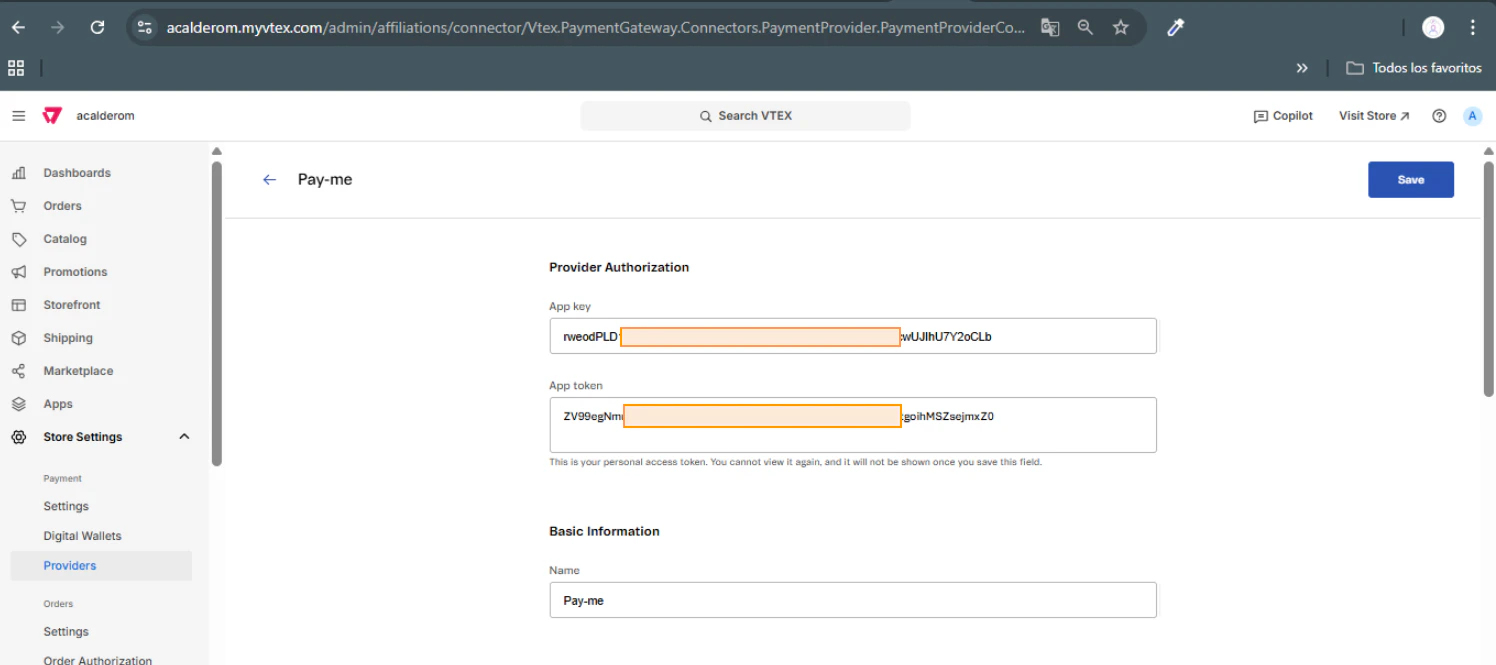
Note: These values are unique by merchant. They cannot be re-visualized once they have been saved, so you have to copies and store them safely.
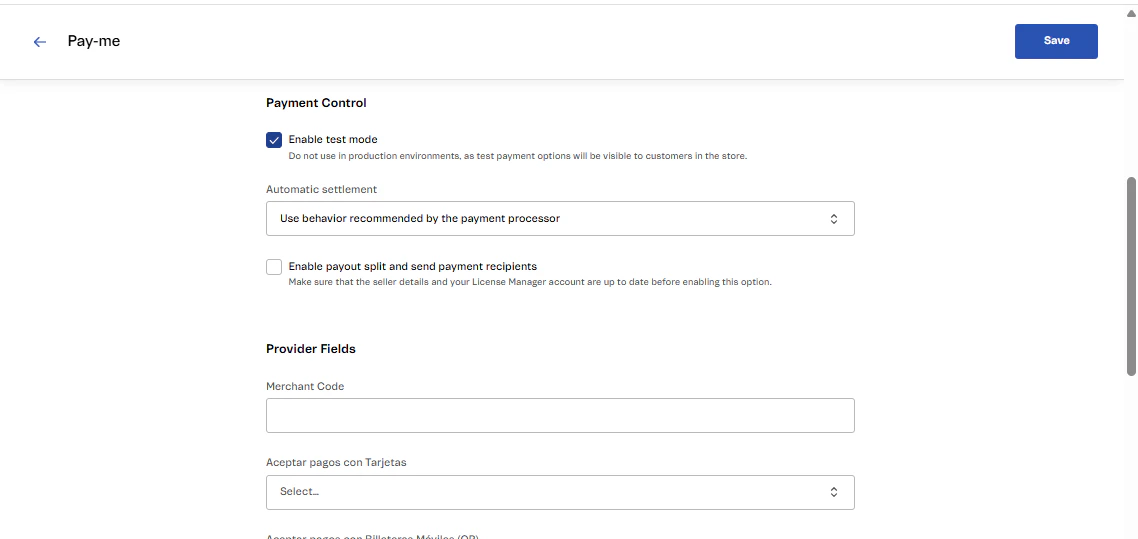
(2) Payment Control
Configure monitoring parameters:- Can Test Mode
- If the merchant’s at evidence, maintain activated.
- If the merchant’s at production, turn off.
- Automatic settlement: Select the option recommended by the processor.
- Enable payout split: Keep disabledExcept as expressly required by the merchant.
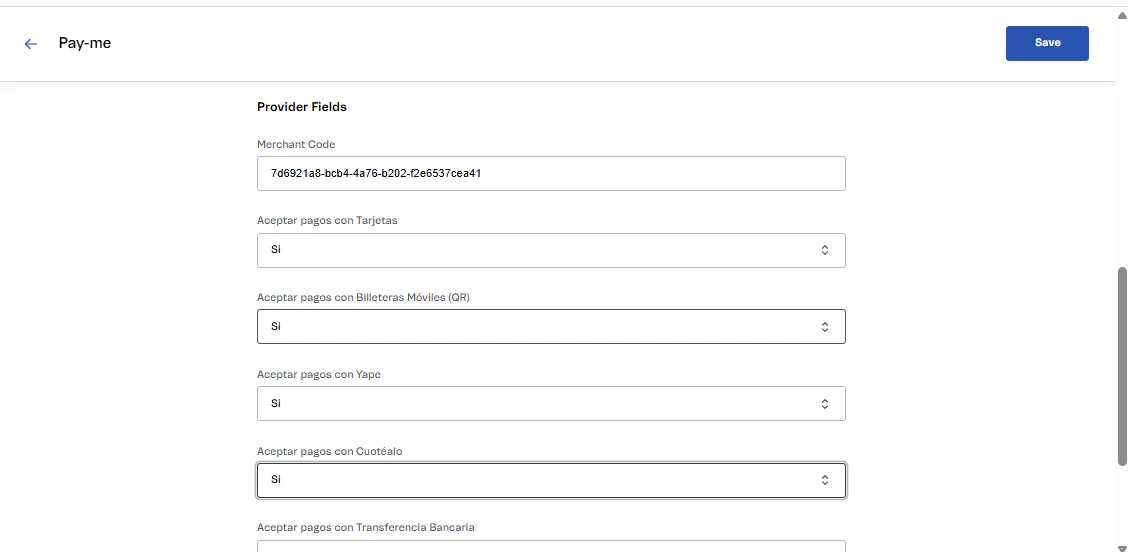
3) Provider Fields
Record the specific data of the merchant:- Merchant Code: A unique merchant code (sent to the post office with the App Key and App Token).
- Accept Payments with CardSelect Yes if the merchant has activated this method.
- **Accept payments with mobile bills (QR)**Select Yes if applicable.
- Accept payments with YapeSelect Yes if it’s been activated.
- Accept payments with Cuotéalo: select Yes.
- Accept payments with Bank Transfer / PagoEfectivo: Select as necessary.
Only payment methods have to be activated previously contracted with Alignet One.
4) Confirmation
Once the fields have been completed:- Click Save.
- VTEX will display a confirmation screen with all charged parameters.
- The new supplier Alignet One will be visible in the list of Providers.