> ## Documentation Index
> Fetch the complete documentation index at: https://docs.alignet.com/llms.txt
> Use this file to discover all available pages before exploring further.
# Installation and configuration
> Install the plugin and configure VPOS-2 in WooCommerce.
## Obtain the plugin
The v4.2 guide references WordPress plugin package 4.1.9. Request the current authorized package from the acquirer or Integrations team and confirm compatibility with the installed WordPress and WooCommerce versions.
Do not install packages from unauthorized sources. Back up the site and test in a controlled environment first.
## Install and activate
Sign in to WordPress as an administrator and open **Plugins → Add New**.
Select **Upload Plugin**, choose the official ZIP file, and click **Install Now**.
Activate the plugin and verify that WordPress reports no compatibility or dependency errors.
## Configure the payment method
Open **WooCommerce → Settings → Payments → Pay-me Checkout**.
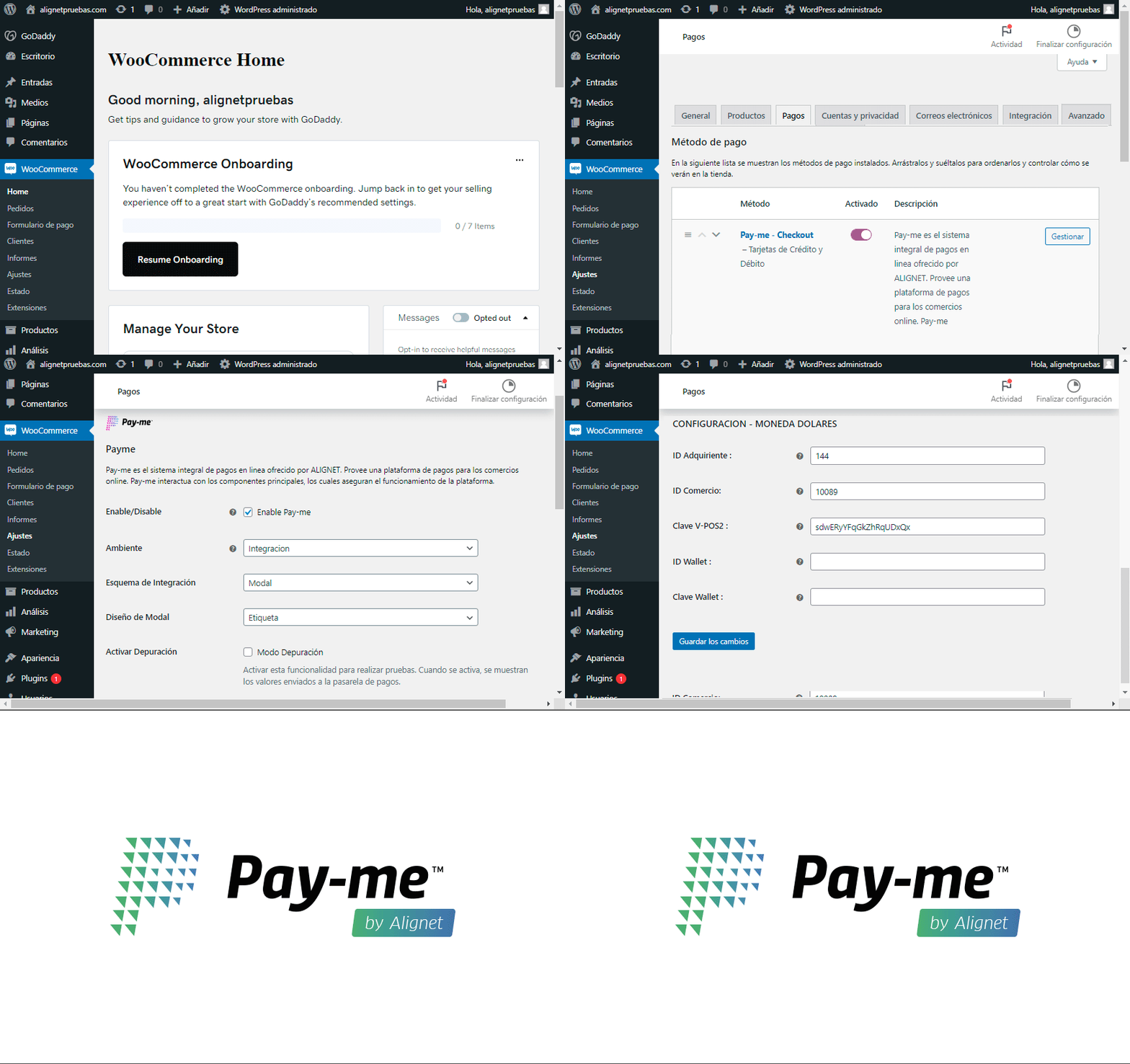 | Setting | Source or rule |
| -------------- | -------------------------------------------------------------------------- |
| Environment | Use **Integration** during setup and certification. |
| Acquirer ID | Supplied by the acquirer. |
| Merchant ID | Supplied by the acquirer. |
| VPOS-2 key | Contents of the `PASARELA` key. |
| Wallet key | Only when Wallet is enabled. |
| Local currency | Configure in the plugin's first currency block. |
| US dollars | Configure in the second, foreign-currency block. |
| Response URL | Generated by the plugin; share it with the acquirer and Integrations team. |
Configure only enabled currencies and ensure the WooCommerce store currency matches the corresponding credential block.
## Post-installation checks
* [ ] The payment method appears in checkout.
* [ ] **Integration** is the active environment.
* [ ] IDs contain no extra spaces or characters.
* [ ] Keys belong to the same merchant and environment.
* [ ] The response URL has been shared and registered.
* [ ] WordPress logs show no plugin errors.
[Continue to recommendations and production →](/en/vpos-2/wordpress/recommendations-and-production)
| Setting | Source or rule |
| -------------- | -------------------------------------------------------------------------- |
| Environment | Use **Integration** during setup and certification. |
| Acquirer ID | Supplied by the acquirer. |
| Merchant ID | Supplied by the acquirer. |
| VPOS-2 key | Contents of the `PASARELA` key. |
| Wallet key | Only when Wallet is enabled. |
| Local currency | Configure in the plugin's first currency block. |
| US dollars | Configure in the second, foreign-currency block. |
| Response URL | Generated by the plugin; share it with the acquirer and Integrations team. |
Configure only enabled currencies and ensure the WooCommerce store currency matches the corresponding credential block.
## Post-installation checks
* [ ] The payment method appears in checkout.
* [ ] **Integration** is the active environment.
* [ ] IDs contain no extra spaces or characters.
* [ ] Keys belong to the same merchant and environment.
* [ ] The response URL has been shared and registered.
* [ ] WordPress logs show no plugin errors.
[Continue to recommendations and production →](/en/vpos-2/wordpress/recommendations-and-production)