> ## Documentation Index
> Fetch the complete documentation index at: https://docs.alignet.com/llms.txt
> Use this file to discover all available pages before exploring further.
# Installation and configuration
> Install and configure Pay-me Checkout in PrestaShop.
## Install the module
The v2.2 guide references PrestaShop module 2.0.9. Request the current authorized package and confirm compatibility before installation.
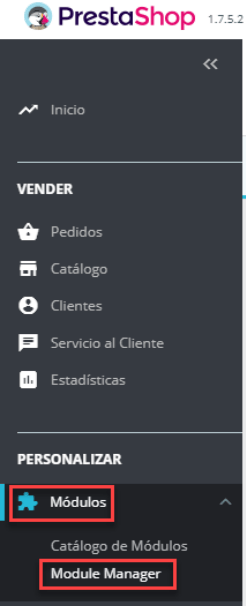
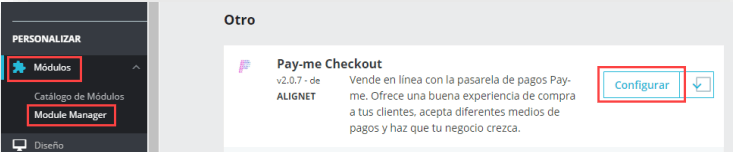
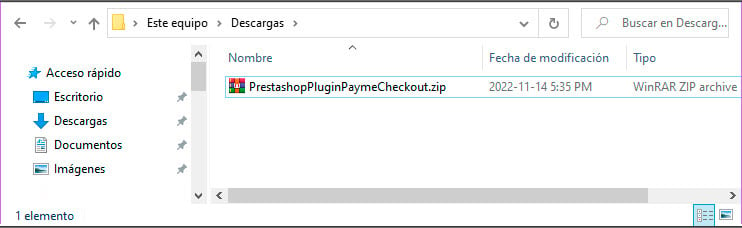 1. Open **Modules → Module Manager**.
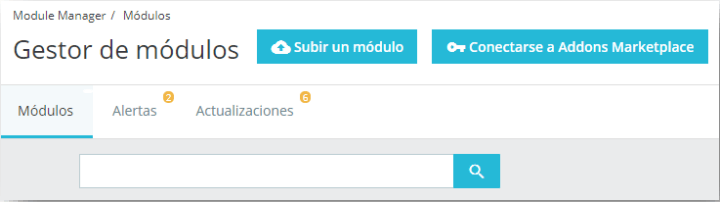
2. Select **Upload a module**.
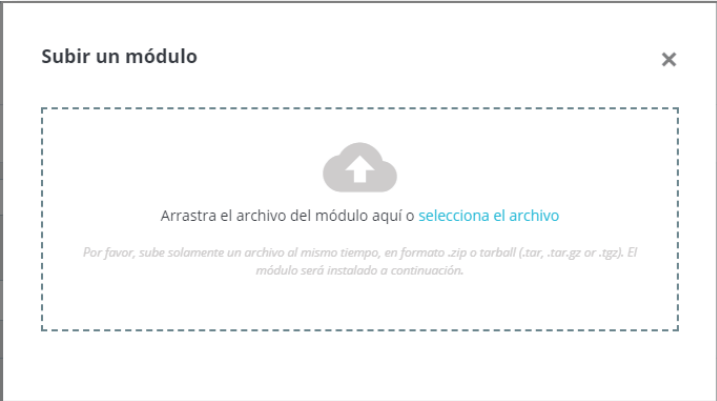
3. Choose the official ZIP package, install it, and complete activation.
1. Open **Modules → Module Manager**.
2. Select **Upload a module**.
3. Choose the official ZIP package, install it, and complete activation.
 ## Configure Pay-me Checkout
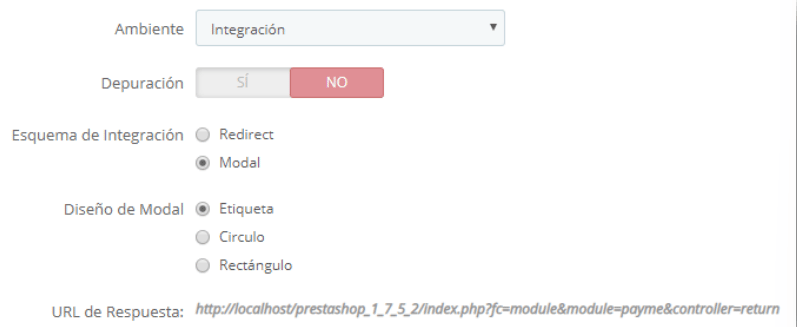
Locate Pay-me Checkout in **Modules → Module Manager**, open its settings, and select **Integration** during certification.
## Configure Pay-me Checkout
Locate Pay-me Checkout in **Modules → Module Manager**, open its settings, and select **Integration** during certification.
 | Setting | Source or rule |
| ------------------------- | --------------------------------------- |
| Environment | **Integration** during setup and tests. |
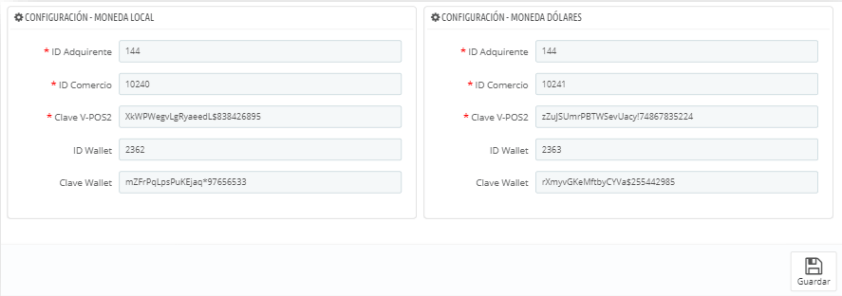
| Acquirer and merchant IDs | Supplied by the acquirer. |
| VPOS-2 key | Contents of the `PASARELA` key. |
| Wallet key | Only when Wallet is enabled. |
| Local currency | First settings block. |
| US dollars | Second foreign-currency block. |
| Response URL | Share with the Integrations team. |
| Setting | Source or rule |
| ------------------------- | --------------------------------------- |
| Environment | **Integration** during setup and tests. |
| Acquirer and merchant IDs | Supplied by the acquirer. |
| VPOS-2 key | Contents of the `PASARELA` key. |
| Wallet key | Only when Wallet is enabled. |
| Local currency | First settings block. |
| US dollars | Second foreign-currency block. |
| Response URL | Share with the Integrations team. |
 [Continue to recommendations and production →](/en/vpos-2/prestashop/recommendations-and-production)