> ## Documentation Index
> Fetch the complete documentation index at: https://docs.alignet.com/llms.txt
> Use this file to discover all available pages before exploring further.
# Installation and activation
> Step-by-step guide to installing Alignet One in your WooCommerce store.
Before you start, make sure you have completed the phase of [Access to the Platform](/en/virtual-payments/wordpress-woocommerce/introduction) and count with the file **.zip** of the plugin Alignet One for WooCommerce.
Download the latest version of the plugin from GitHub Repository.
## Previous requirements
For optimum operation, your environment should meet the following:
* **WordPress:** Version 3.3 or more.
* **WooCommerce:** Installed and activated at your CMS.
* **PHP:** Version 5.2.4 or more (7.4 + for safety).
* **Security:** Certificate SSL installed (required navigation by **HTTPS**).
***
## Installation process
Follow these steps to load the plugin to your server WordPress:
Relogin to your CMS of WordPress as an administrator. On the left side menu, go to **Plugins** > **Add new**.
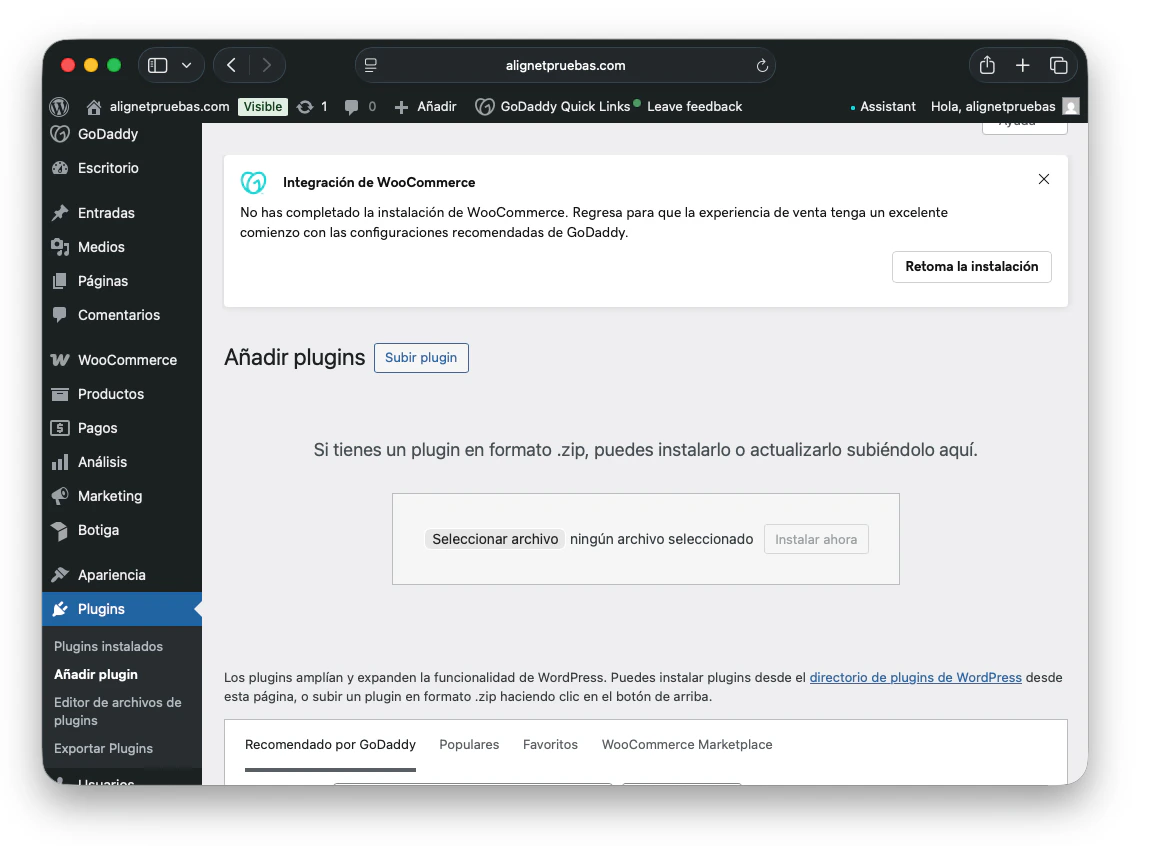 Click the button **Up plugin** Located at the top of the screen. A file selector will be opened.
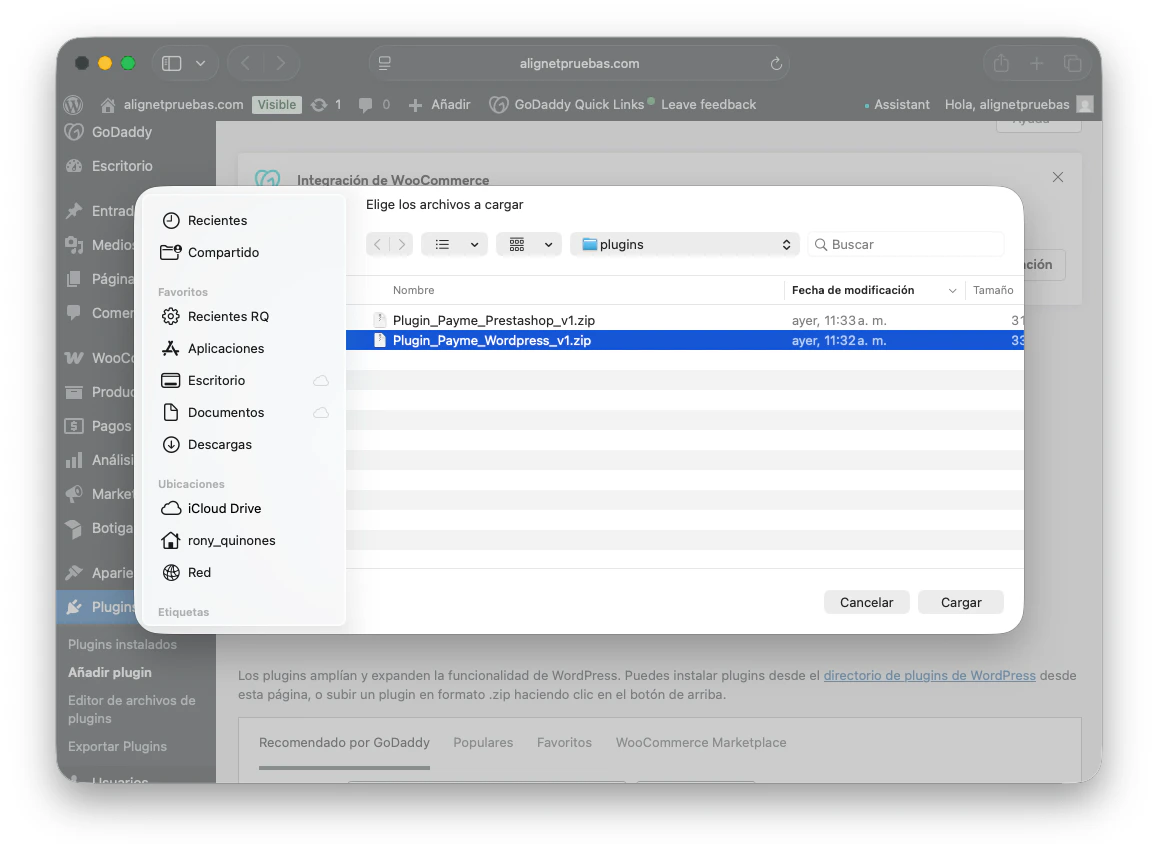 Click **Select File**, check your computer for a compressed plug file (ej: Plugin\_Payme\_Wordpress\_vX.zip) and select.
Click the button **Install Now**. WordPress will be charged with decompress and move the files to the appropriate folder (wp-constore / plugins /).
Click **Select File**, check your computer for a compressed plug file (ej: Plugin\_Payme\_Wordpress\_vX.zip) and select.
Click the button **Install Now**. WordPress will be charged with decompress and move the files to the appropriate folder (wp-constore / plugins /).
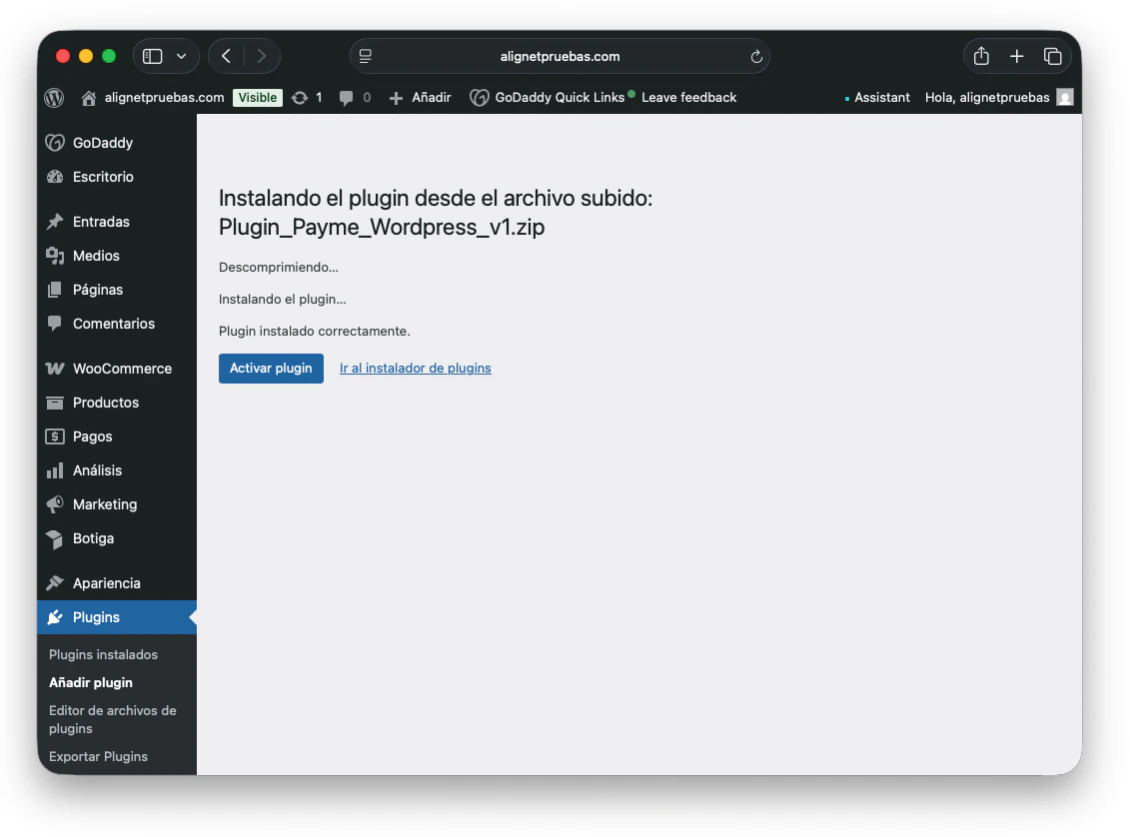 Once the installation has been completed, click on the button **Activate plugin**.
 ***
## Monitoring of the installation
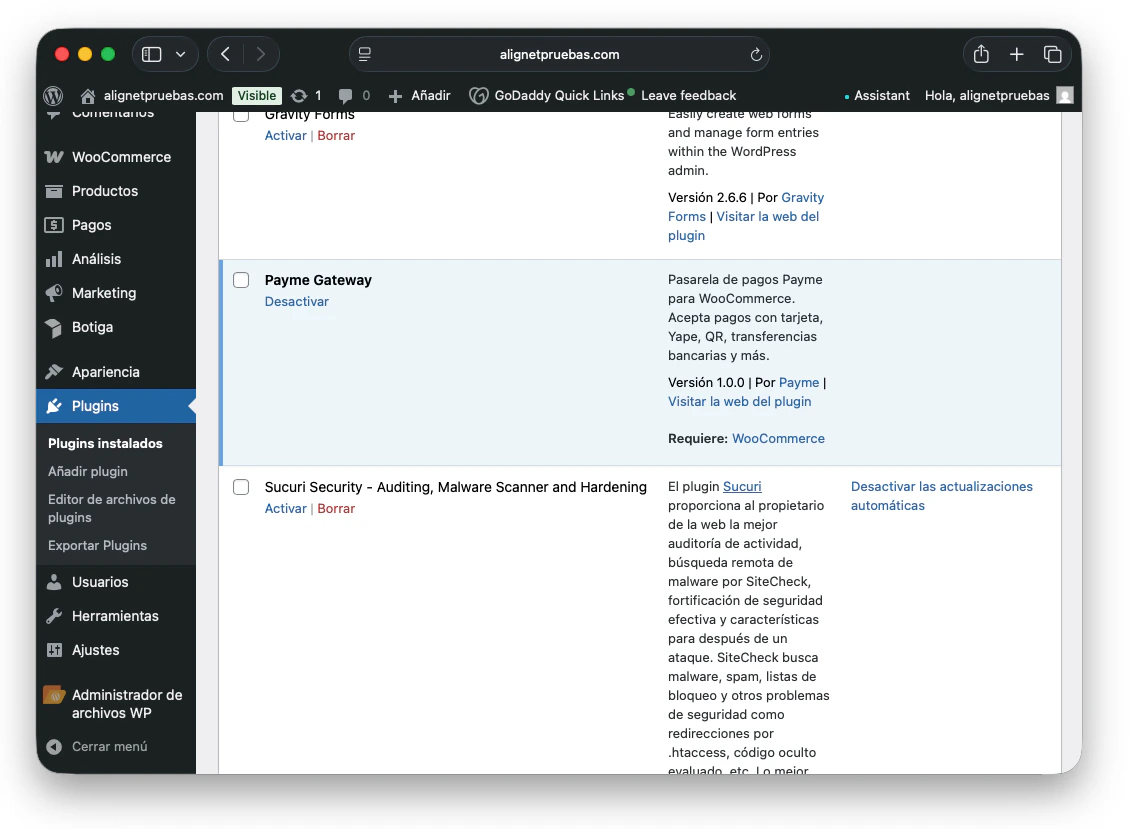
After activation, you can confirm that the plugin is ready to be set up:
1. Go to **WooCommerce** > **Adjustments** at the WordPress.
2. Select the tab **Payments** (or *End purchase* in old versions).
3. You should visualise the payment method **Alignet One - Checkout** in the official list of gateways.
**The plugin doesn't appear?** Be sure that WooCommerce have been properly activated. If the problem persists, check that your server has an extension enabled `fsockopen` of PHPrequired by some gateways for network communication.
***
Learn how to enter your credentials (Merchant ID, Acquire ID and keys) to enable the testing environment.
***
## Monitoring of the installation
After activation, you can confirm that the plugin is ready to be set up:
1. Go to **WooCommerce** > **Adjustments** at the WordPress.
2. Select the tab **Payments** (or *End purchase* in old versions).
3. You should visualise the payment method **Alignet One - Checkout** in the official list of gateways.
**The plugin doesn't appear?** Be sure that WooCommerce have been properly activated. If the problem persists, check that your server has an extension enabled `fsockopen` of PHPrequired by some gateways for network communication.
***
Learn how to enter your credentials (Merchant ID, Acquire ID and keys) to enable the testing environment.