> ## Documentation Index
> Fetch the complete documentation index at: https://docs.alignet.com/llms.txt
> Use this file to discover all available pages before exploring further.
# Configure payment conditions in VTEX
After creating the Affiliation of **Alignet One** and Loading Credentials, Assess to **Payment Conditions** from the store.
### 1) Access to Payment Conditions
At VTEX, go to: **Store Settings > Payments > Settings**.\
Select the option **Payment Conditions**.
### 2) Select the supplier Alignet One
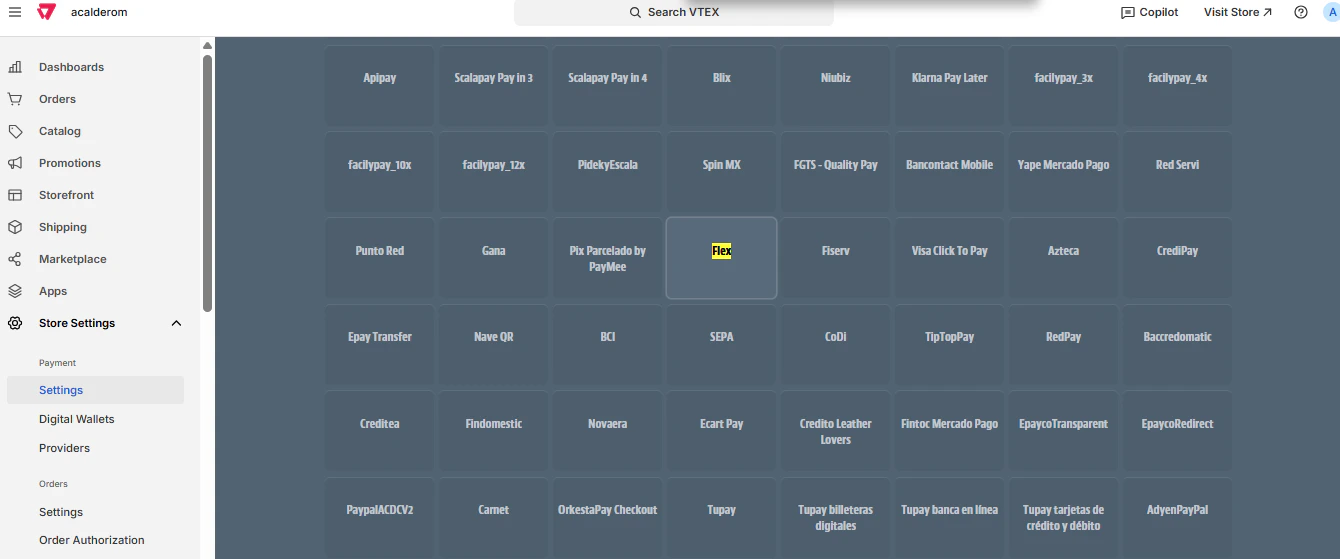
On the list of payment methods, place **Flex**.\
Click to open the configuration.
Open full screen image
 ### 3) Configure condition
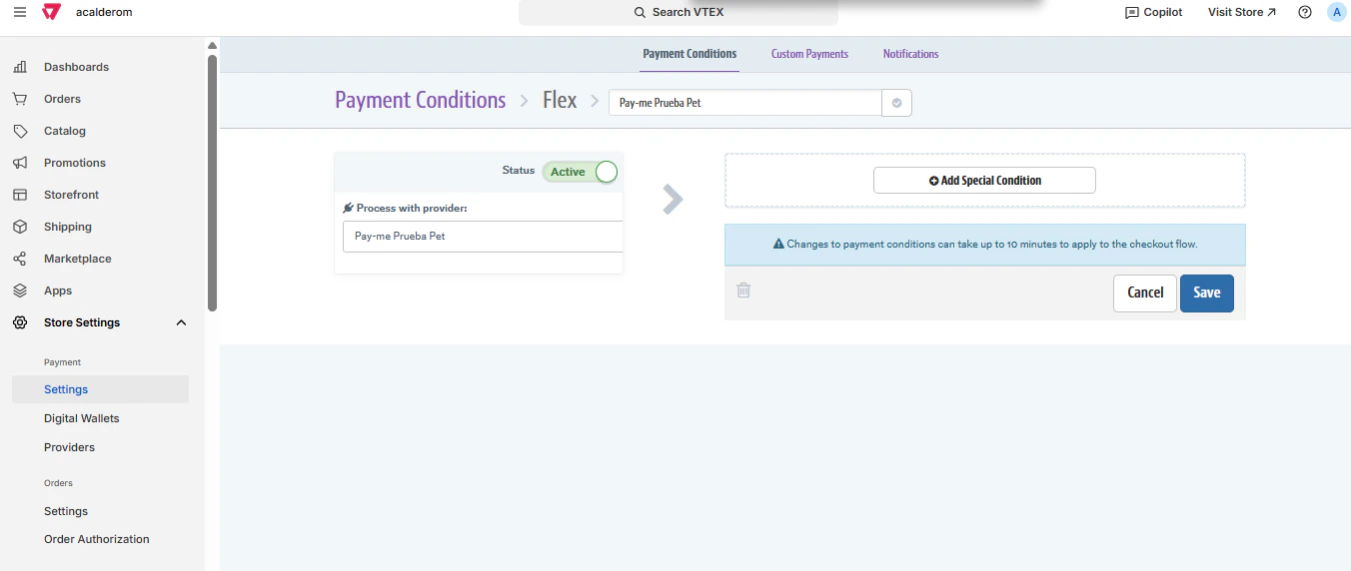
In **Process with provider**select the association of **Flex** previously created (example: *Alignet One Test pet*).\
Make sure his **Status** and **Active**.
### 3) Configure condition
In **Process with provider**select the association of **Flex** previously created (example: *Alignet One Test pet*).\
Make sure his **Status** and **Active**.
 ### 4) Save changes
Click **Save**.\
The changes can take about **5 to 10 minutes** To be applied to storage check-out.
### 4) Save changes
Click **Save**.\
The changes can take about **5 to 10 minutes** To be applied to storage check-out.