> ## Documentation Index
> Fetch the complete documentation index at: https://docs.alignet.com/llms.txt
> Use this file to discover all available pages before exploring further.
# Configure credentials and payment methods
Once the supplier has been selected **Alignet One**, configure autoization and integration parameters.
Credentials **Key App**, **App token** and **Merchant Code** are delivered by Alignet Oneand each has a purpose.
### Credentials fields
Open complete board
| Field | Description | Example |
| ----------------- | --------------------------------------- | ------------------------------------------------------------------ |
| **Key App** | Public Merchant Key | `Ri54Xh2CREY8OiMnmDnok2tYUxSLnft57Oum83hbVeyUAlCY6RMrx4jVFWmzA0i1` |
| **App token** | Tochen's secret authentication | `Ri54Xh2CREY8OiMnmDnok2tYUxSLnft57Oum83hbVeyUAlCY6RMrx4jVFWmzA0i1` |
| **Merchant Code** | Unique identifier (NSL) of the merchant | `e899a9f-c899-4563-aeeb-6345d437e25a` |
### 1) Provider Authorisation
Enter the credentials shared by the Alignet One:
* **Key App** → Public key of the merchant.
* **App token** → Token's secret authentication.
Open full screen image
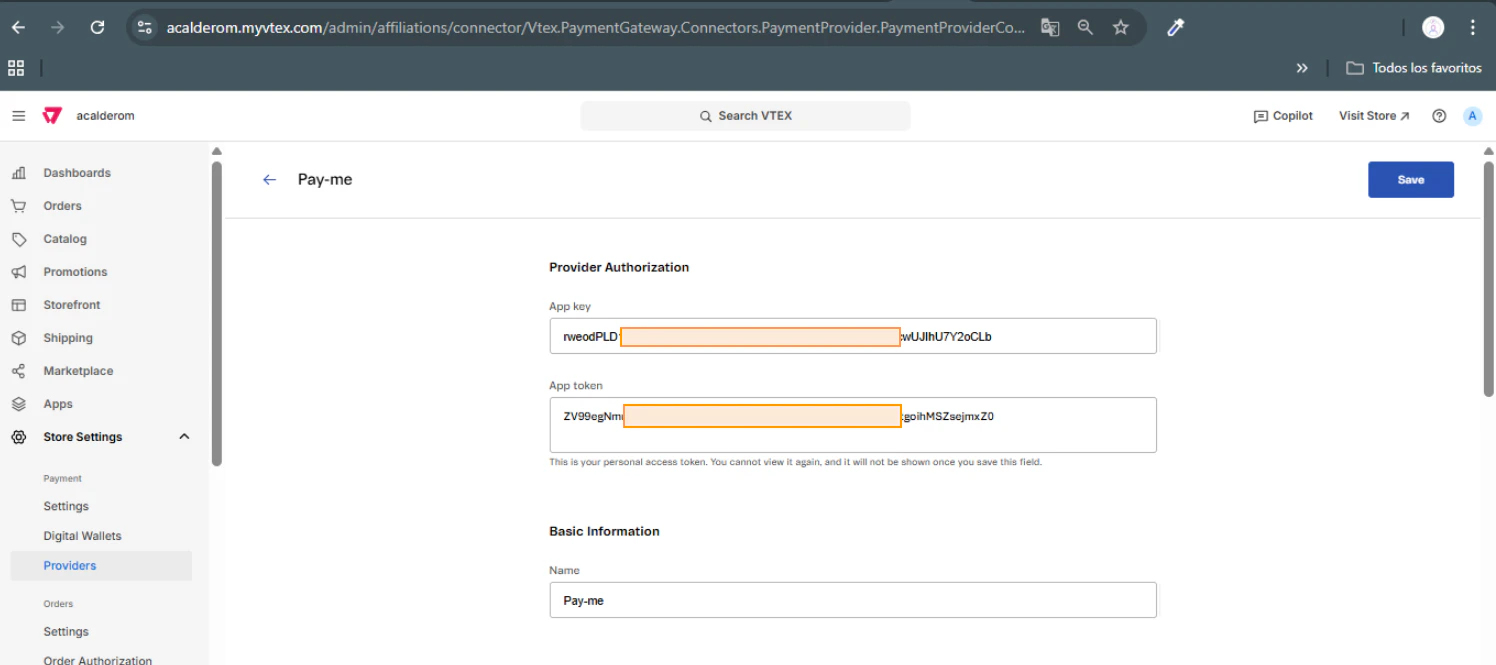 Note: These values are unique by merchant. They cannot be re-visualized once they have been saved, so you have to copies and store them safely.
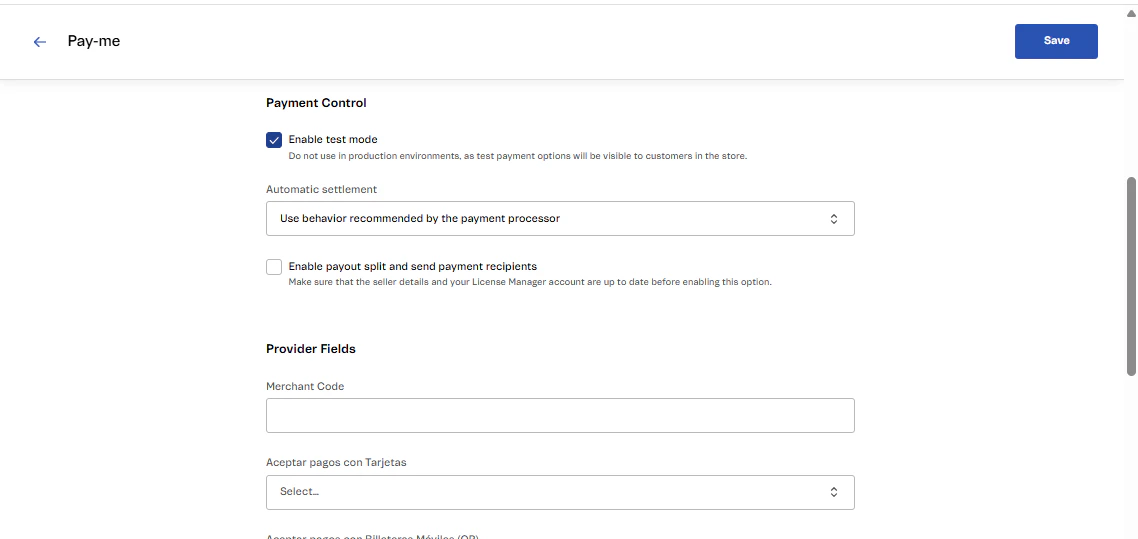
### (2) Payment Control
Configure monitoring parameters:
* **Can Test Mode**
* If the merchant's at **evidence**, maintain **activated**.
* If the merchant's at **production**, **turn off**.
* **Automatic settlement**: Select the option recommended by the processor.
* **Enable payout split**: Keep **disabled**Except as expressly required by the merchant.
Open full screen image
Note: These values are unique by merchant. They cannot be re-visualized once they have been saved, so you have to copies and store them safely.
### (2) Payment Control
Configure monitoring parameters:
* **Can Test Mode**
* If the merchant's at **evidence**, maintain **activated**.
* If the merchant's at **production**, **turn off**.
* **Automatic settlement**: Select the option recommended by the processor.
* **Enable payout split**: Keep **disabled**Except as expressly required by the merchant.
Open full screen image
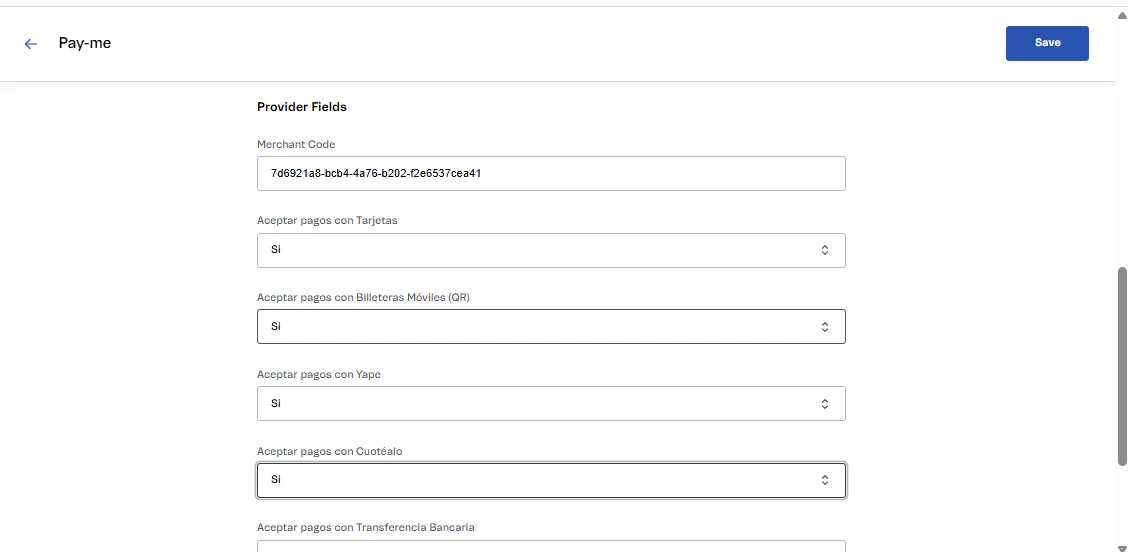
 ### 3) Provider Fields
Record the specific data of the merchant:
* **Merchant Code**: A unique merchant code (sent to the post office with the App Key and App Token).
* **Accept Payments with Card**Select **Yes** if the merchant has activated this method.
* \*\*Accept payments with mobile bills (QR)\*\*Select **Yes** if applicable.
* **Accept payments with Yape**Select **Yes** if it's been activated.
* **Accept payments with Cuotéalo**Select **Yes** That's right.
* **Accept payments with Bank Transfer / PagoEfectivo**: Select as necessary.
Open full screen image
>
>
### 3) Provider Fields
Record the specific data of the merchant:
* **Merchant Code**: A unique merchant code (sent to the post office with the App Key and App Token).
* **Accept Payments with Card**Select **Yes** if the merchant has activated this method.
* \*\*Accept payments with mobile bills (QR)\*\*Select **Yes** if applicable.
* **Accept payments with Yape**Select **Yes** if it's been activated.
* **Accept payments with Cuotéalo**Select **Yes** That's right.
* **Accept payments with Bank Transfer / PagoEfectivo**: Select as necessary.
Open full screen image
>
>  >
>
> Only payment methods have to be activated **previously contracted** with Alignet One.
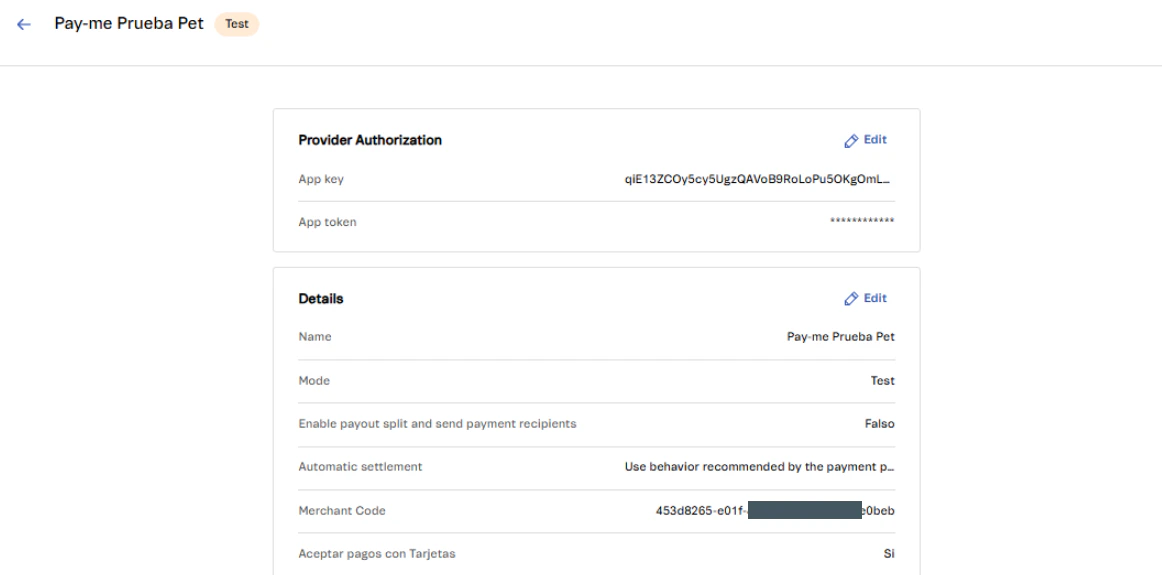
### 4) Confirmation
Once the fields have been completed:
1. Click **Save**.
2. VTEX will display a confirmation screen with all charged parameters.
3. The new supplier **Alignet One** will be visible in the list of **Providers**.
Open full screen image
>
>
> Only payment methods have to be activated **previously contracted** with Alignet One.
### 4) Confirmation
Once the fields have been completed:
1. Click **Save**.
2. VTEX will display a confirmation screen with all charged parameters.
3. The new supplier **Alignet One** will be visible in the list of **Providers**.
Open full screen image