> ## Documentation Index
> Fetch the complete documentation index at: https://docs.alignet.com/llms.txt
> Use this file to discover all available pages before exploring further.
# Configuration
> Configure Alignet One as a payment provider in VTEX and enable payment methods.
## Configure VTEX
***
## 1. Creating a supplier Alignet One
`Store Settings → Payments → Providers`
You'll create the provider **Alignet One** and then load credentials and enable your merchant's payment methods.
If you do not place this option in the side menu, use the top Admin search engine and write `Providers`.
Go to `Store Settings → Payments → Providers`.
Click **New Provider** at the top right.
In the search window, write **Alignet One** To filter the list.
Choose the supplier **Alignet One** with type **Payment** to continue with the configuration.
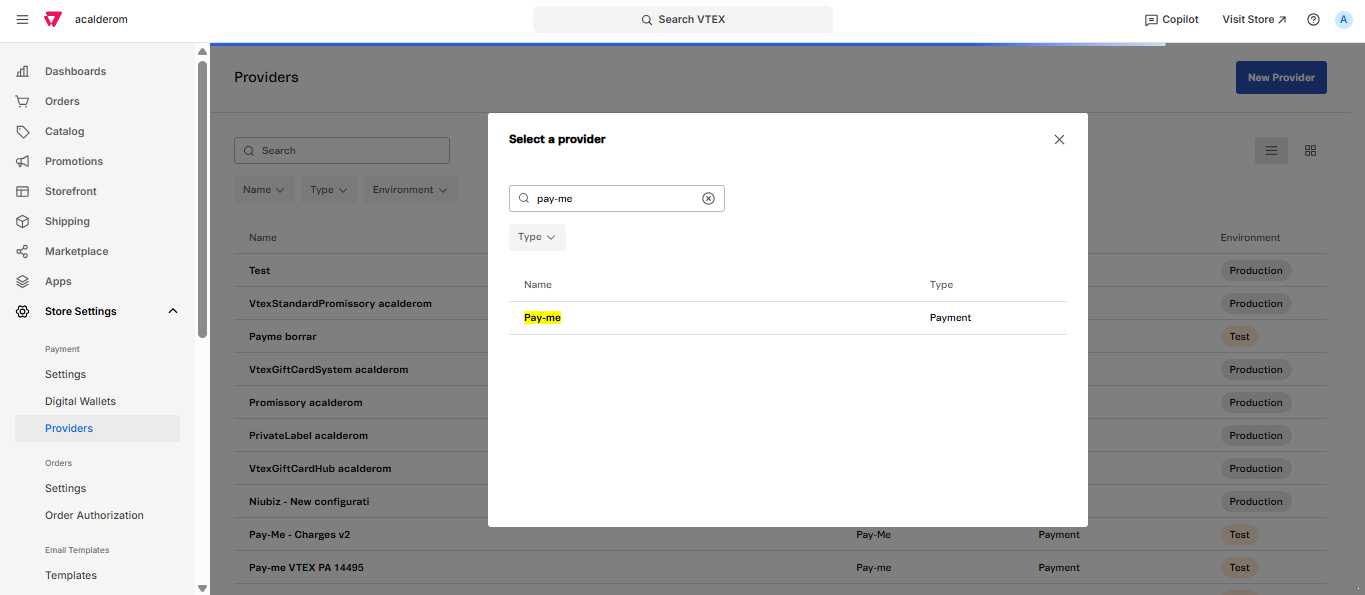 With this step, the storage remains ready for you to configure the credentials and details of integration.
It continues with the burden of credentials, the monitoring of the environment and the activation of payment methods.
With this step, the storage remains ready for you to configure the credentials and details of integration.
It continues with the burden of credentials, the monitoring of the environment and the activation of payment methods.